
AKKO 3098B and 3098N Mechanical Keyboard Usage Guide
10/02/2022
Recently, AKKO officially launched the AKKO Multi-modes series of mechanical keyboards AKKO Multi-modes with 3 connection modes: Wired / Bluetooth 5.0 / USB 2.4Ghz, featuring two models: 3098B and 3098N. However, wireless keyboards often come with many questions and concerns, and this article aims to address some of these issues.
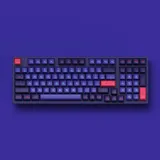
AKKO 3098B Multi-modes NEON
WIRELESS CONNECTION STANDARDS FOR MECHANICAL KEYBOARDS
Currently, the two most common wireless connection standards for mechanical keyboards are Bluetooth and 2.4GHz. Of course, each type has its own advantages and disadvantages, and users should carefully consider before using them.
CONTENT | BLUETOOTH | 2.4GHZ
Advantages | – Connects to multiple devices (multiple profiles)– Compatible with various platforms/operating systems– Convenient for travel, flexible and compact | – Low latency (though still present) providing a better experience– Easy setup by simply plugging in the USB receiver
Disadvantages | – Higher latency compared to 2.4Ghz, thus unsuitable for gamers– More complex initial setup compared to 2.4Ghz | – Poor compatibility with devices/operating systems
GUIDE TO USING AKKO Multi-Modes Series KEYBOARDS
Step 1: Activate wireless mode by switching the switch under the keyboard to WIN or MAC mode (depending on your operating system).
Step 2: Ensure your PC/Laptop has Bluetooth turned on or plug in the USB 2.4Ghz dongle provided with the keyboard to detect the driver.
Step 3: Activate the Bluetooth / 2.4Ghz mode on the 3098B/3098N keyboard using the key combination and connect to the receiving device.
AKKO 3098N
- To connect to Bluetooth 5.0, press Fn + 1/2/3/4 (up to 4 devices / 4 profiles)
- To connect to 2.4Ghz, press Fn + 5
- To connect with a cable, press Fn + 6
AKKO 3098B
- To connect to Bluetooth 5.0, press Fn + E/R/T (up to 3 devices / 3 profiles)
- To connect to 2.4Ghz, press Fn + Y
- To connect with a cable, press Fn + U
The LED corresponding to the profile you select will flash. The LED will stop flashing when the connection is successful.
During use, you can switch profiles / connection modes using the key combinations Fn + 1/2/3/4/5/6 (for 3098N) and Fn + E/R/T/Y/U (for 3098B)
The keyboard has 3 LED lights on the right side in the order of NUM LOCK / POWER LED / WIN LOCK
- The POWER LED turns on when the cable is plugged in. The keyboard only charges when the switch is set to WIN/MAC, and the POWER LED turns off when fully charged
- POWER LED off -> Battery fully charged
- POWER LED flashing -> indicates low battery and needs charging
When updating the keyboard firmware, you may not be able to connect via USB 2.4Ghz and can try the following:
- Unplug the USB 2.4Ghz dongle
- Switch the keyboard to 2.4Ghz mode (by pressing Fn + Y or Fn + 5)
- Hold Fn + Y / Fn + 5 for 3 seconds (until 5 LEDs light up)
- Plug in the USB 2.4Ghz dongle and place the keyboard near it
Note:
- The keyboard will automatically go to sleep if not used for a period of time to save battery
- The manufacturer recommends turning off wireless mode when not in use (switch to USB mode and press Fn + 6 or Fn + U)
- Only charge by plugging the cable into a Laptop/PC, not directly into an electrical outlet
Another important note is that there is no perfect Bluetooth keyboard; each Bluetooth keyboard has its own advantages and disadvantages, so users should thoroughly research before using to avoid disappointing experiences.
DIFFERENCES BETWEEN 3098B AND 3098N
- 3098N uses higher-end TTC switches, with more beautiful and brighter RGB lighting (due to LED DIFFUSER) and longer battery life
Differences Between AKKO 3098B and 3098N
3098B Driver (Supports 3068B/MOD003/MOD004/MOD005/MOD007)
- LED Adjustment
- Keymap (Supports 4 Fn Layers)
- Firmware Update
- Macro Setting
AKKO 3098B Driver
3098N Driver
- LED Adjustment
- Keymap
- Macro Setting
- Other Settings
AKKO 3098N Driver