
How to Use the Driver for Akko 3108S RGB PRO
22/03/2020
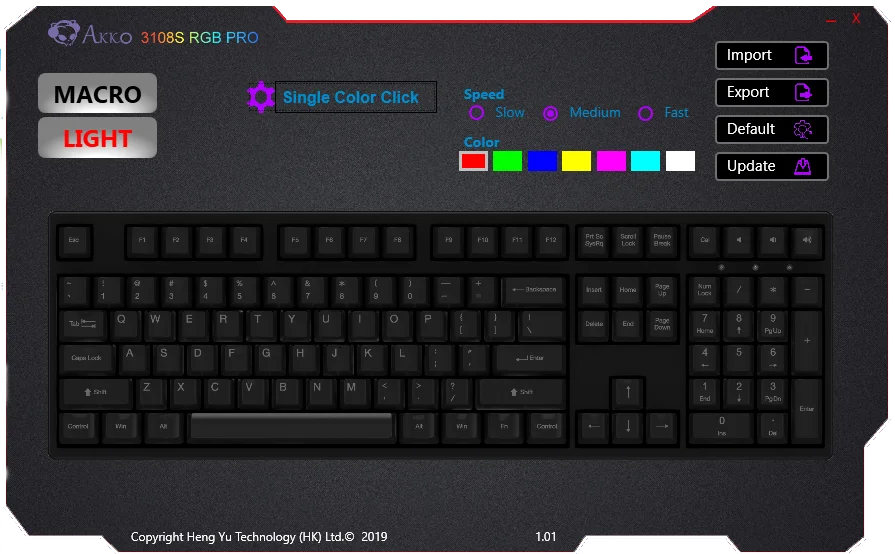
In the previous article, akko.vn guided you through successfully installing the driver for the Akko 3108S RGB PRO. Today, let's explore how to use this driver. (To download drivers for other products, refer to here )
The Akko 3108S RGB PRO driver version 1.01 is an updated version with English language support for the international market (the original version only supports Chinese). Functionally, there are no significant differences.

1. LED Customization
To customize the LED, select the "LIGHT" option, and the gear icon next to it will display available change modes, such as Breathing, Single Color...
Depending on the LED mode, the following settings may or may not be available:
- Speed: LED change speed includes 3 modes: Slow (slow), Medium (normal), Fast (fast)
- Color : LED color on the keyboard
- Import: Select a preset LED customization file (shared by friends or the community)
- Export: Save your customizations as a file for future use or sharing
- Default: Reset all settings to default
- Update: Update to the latest driver version

2. Macro Mode
A macro is a sequence of actions (such as key presses, mouse clicks, and delay} that can be replayed to help you perform repetitive tasks. They are also used to replay long or difficult sequences. delay }, {
To use macros, select the Macro mode on the driver.

Left-click on the key you want to assign a macro to, and a window will appear:

- Default: Default setting, no macro assigned.
- Macro: To assign a macro, press the record button to save your sequence of actions on the keyboard. After completing the sequence, select STOP --> OK. The macro is now assigned to the key. You can test it by pressing the key on the keyboard.

- Multimedia: Assign buttons for media control such as Play|Pause, Next, Previous...

- Shortcut: Assign tasks such as Lockscreen, Ctrl+alt+del, Close window...

- Disable: This will make the key you select inactive when typing. Very convenient when playing FPS, role-playing games, etc., as it helps prevent accidental key presses.

The above are all the basic functions that Akko Vietnam has guided you through. To exchange and share more information, please like ourFacebook page thanks!